

Quotes
Every quote, from every tenant, in one list — the platform-wide counterpart to Leads.
What you'll learn
- How to read the cross-tenant quotes list
- What you can edit, and what you can't
- How to remove a quote
The quotes list
Open Quotes in the sidebar.
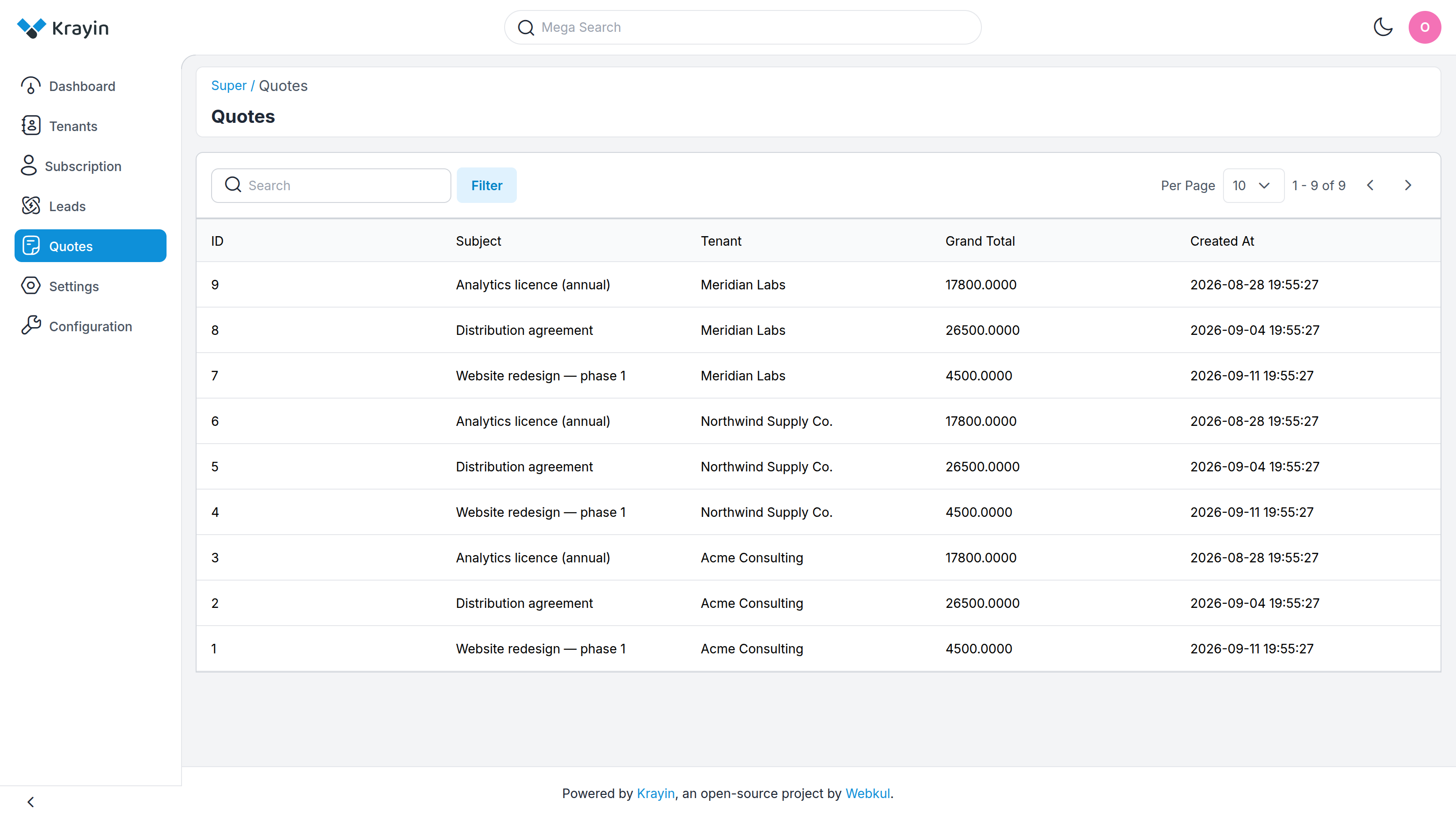
Each row shows:
- ID — the quote's number within its own tenant.
- Subject — what the quote is for.
- Tenant — which tenant raised it.
- Grand Total — the quote's total value.
- Created At — when it was raised.
Search and Filter narrow the list the same way they do on the leads screen — by tenant, by date, or by value.
Editing a quote
The pencil icon opens a quote. You can adjust:
- Subject
- Description
- Expiry Date
The rest — the tenant, the contact person, the assigned agent, and the Grand Total itself — is shown but marked Read-only details (managed by the tenant). Those figures come from the quote's line items, which the tenant edits inside their own CRM.
WARNING
As with leads, editing here changes the tenant's real quote. Use it for oversight and corrections, not for building quotes — that is the tenant's job.
Deleting a quote
The trash icon removes a quote from the tenant's CRM. Permanent — use it sparingly.