

Plan Management
Plans are what your tenants subscribe to. This is where you build them — set the price, add an offer, cap how much a tenant can create, and decide whether the plan is sold monthly, yearly, or both.
What you'll learn
- How to read the plans list
- How to create a plan with monthly and yearly pricing
- How to add an offer and resource limits
- What a Trial Plan does differently
The plans list
Open Subscription → Plans.
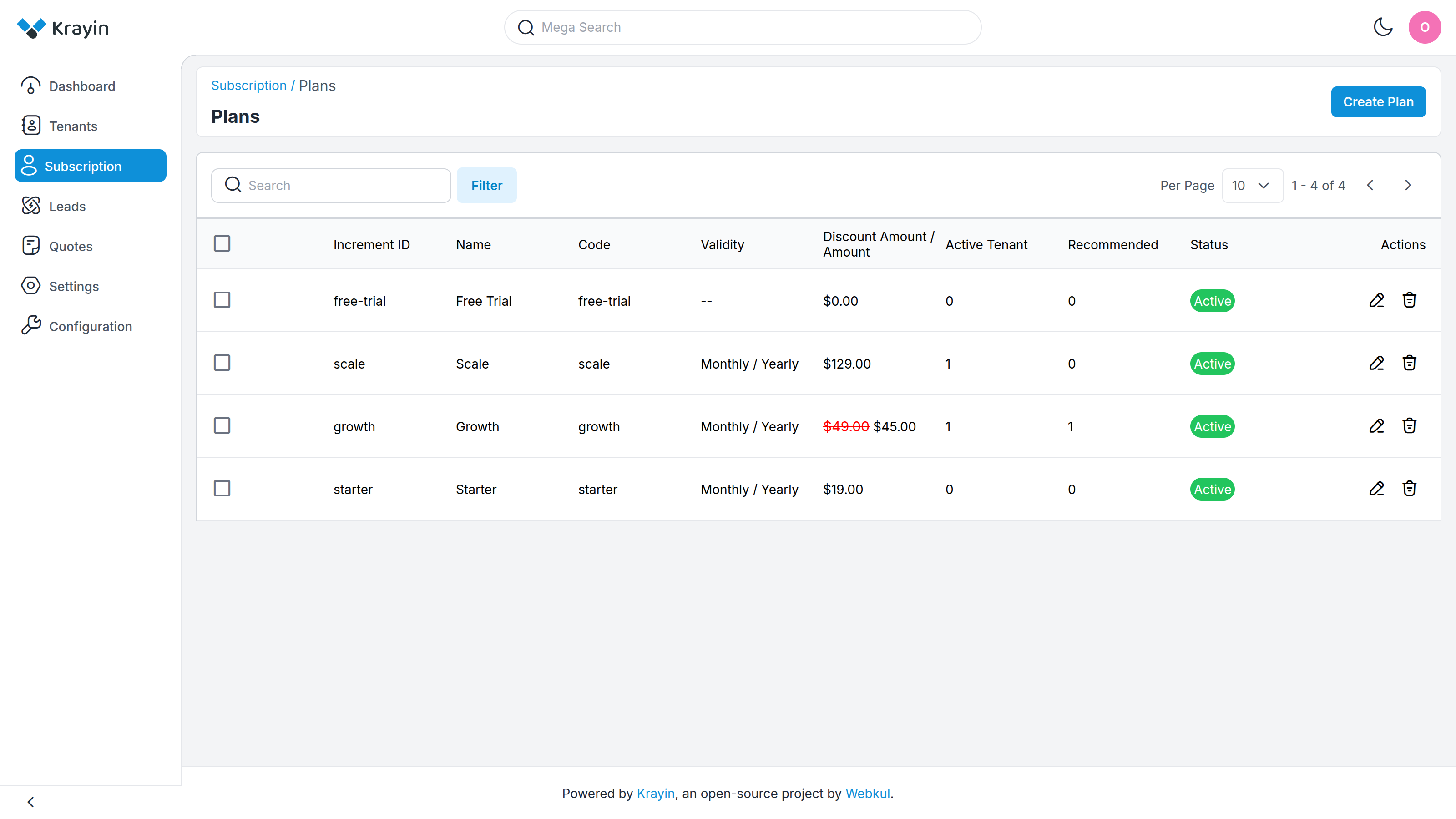
Each row shows the plan's Name and Code, its Validity (which cycles it's sold on), its Discount Amount / Amount (an offer shows the original price struck through), how many Active Tenants are on it, whether it's Recommended, and its Status.
Select Create Plan to add one.
Creating a plan
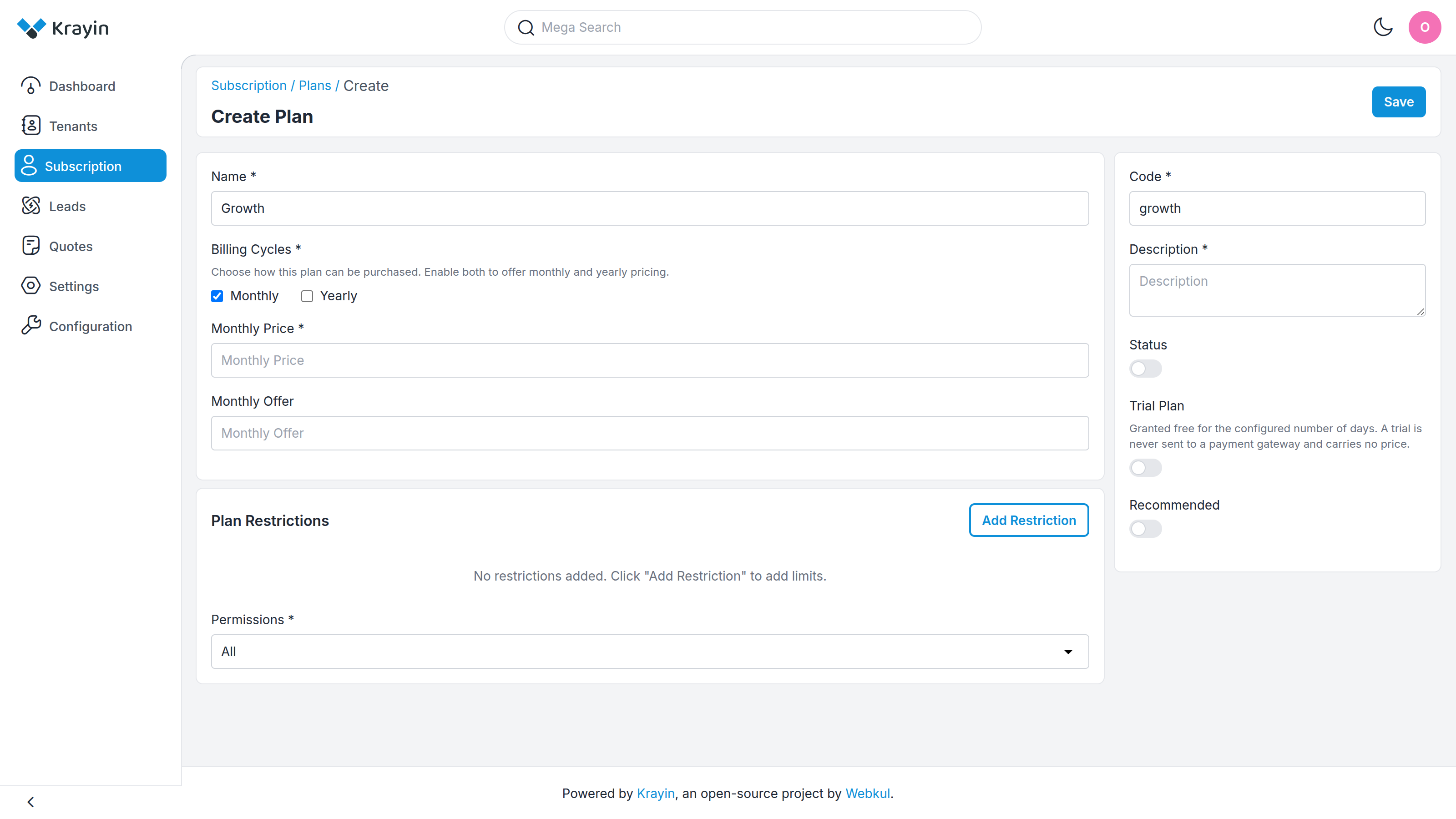
Name and code
- Name (required) — what tenants see on the pricing page, e.g. Growth.
- Code (required) — a unique internal identifier, e.g.
growth. Lowercase, no spaces. - Description (required) — the one-line pitch shown under the plan name.
Billing cycles and pricing
Under Billing Cycles, tick Monthly, Yearly, or both. You must enable at least one. The price fields appear for whichever you enable:
- Monthly Price / Yearly Price — the list price for that cycle.
- Monthly Offer / Yearly Offer — an amount taken off the price. Leave blank for no discount. An offer can't be larger than the price.
Enabling both cycles lets a tenant choose monthly or yearly on the pricing page, and Krayin shows how much the yearly option saves.
Plan Restrictions
Restrictions cap what a tenant on this plan can create — team members, leads, contacts, and so on. Select Add Restriction, choose a Restriction Type, give it a Label, and set a Limit Value. Use -1 for unlimited.
Add as many as the plan needs. A tenant who hits a limit is prompted to upgrade.
Permissions
Permissions controls which CRM features the plan unlocks — All for everything, or Custom to hand-pick.
The switches
- Status — turn on to publish the plan. A plan left off is hidden from tenants.
- Recommended — highlights the plan on the pricing page as the suggested choice.
- Trial Plan — see below.
Select Save to publish. If the plan has a price, Krayin registers it with your payment gateway automatically, so tenants can pay for it right away — provided Stripe is connected.
Trial plans
Turning on Trial Plan changes the plan fundamentally. As the form explains, a trial is "granted free for the configured number of days. A trial is never sent to a payment gateway and carries no price."
So a trial has no price fields and no billing cycle — it's a way in, not a paid tier. Its length is set once under Configuration, and it's covered in full on Free Trials.
Editing a plan
The pencil icon opens the same form pre-filled.
WARNING
Editing a live plan's price changes it for the gateway too. Tenants already subscribed keep their current price until renewal, but new subscribers pay the new one. Change published pricing deliberately.
Where to go next
- See who has subscribed → Subscribers
- Set up the free trial → Free Trials
- Connect Stripe so paid plans work → Configuration