

Configuration
Configuration is where the platform's global settings live — your logo, the default language, the Stripe connection that takes payment, and the free-trial rules. Get these right once and the rest of the platform works.
What you'll learn
- Where configuration lives and how it's organised
- How to set your logo and locale
- How to connect Stripe so paid plans work
- Where the notification and trial settings are
Finding it
Open Configuration in the sidebar. Settings are grouped into two areas — General and Subscription — and you save each group on its own with Save Configuration.
General
The General group covers how the platform looks and what language it speaks.
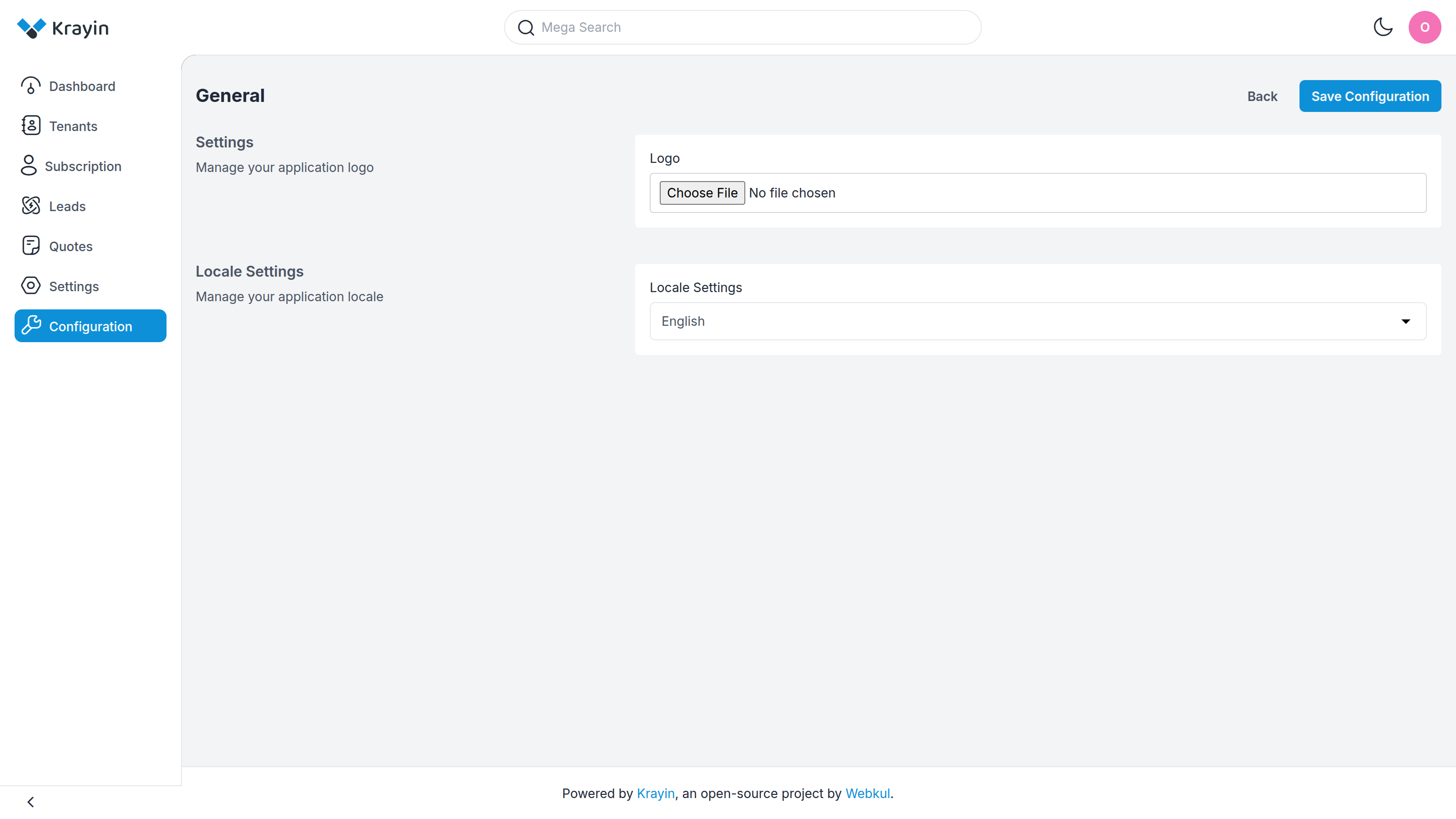
- Logo — upload the image shown in the super-admin panel. Accepts JPG, PNG, WEBP, SVG and BMP.
- Locale Settings — the default language, English out of the box.
Subscription
The Subscription group holds everything about billing and sign-ups. It has three blocks.
Notification email
Choose where the platform sends its tenant notifications.
- Super Admin Notification Email — turn on to receive all tenant notifications at a super-admin address.
- Notification Email Addresses — the address or addresses to send to. Enter several separated by commas, e.g.
[email protected], [email protected].
Stripe
This is the connection that lets tenants pay for plans. Without it, paid plans can't be purchased.
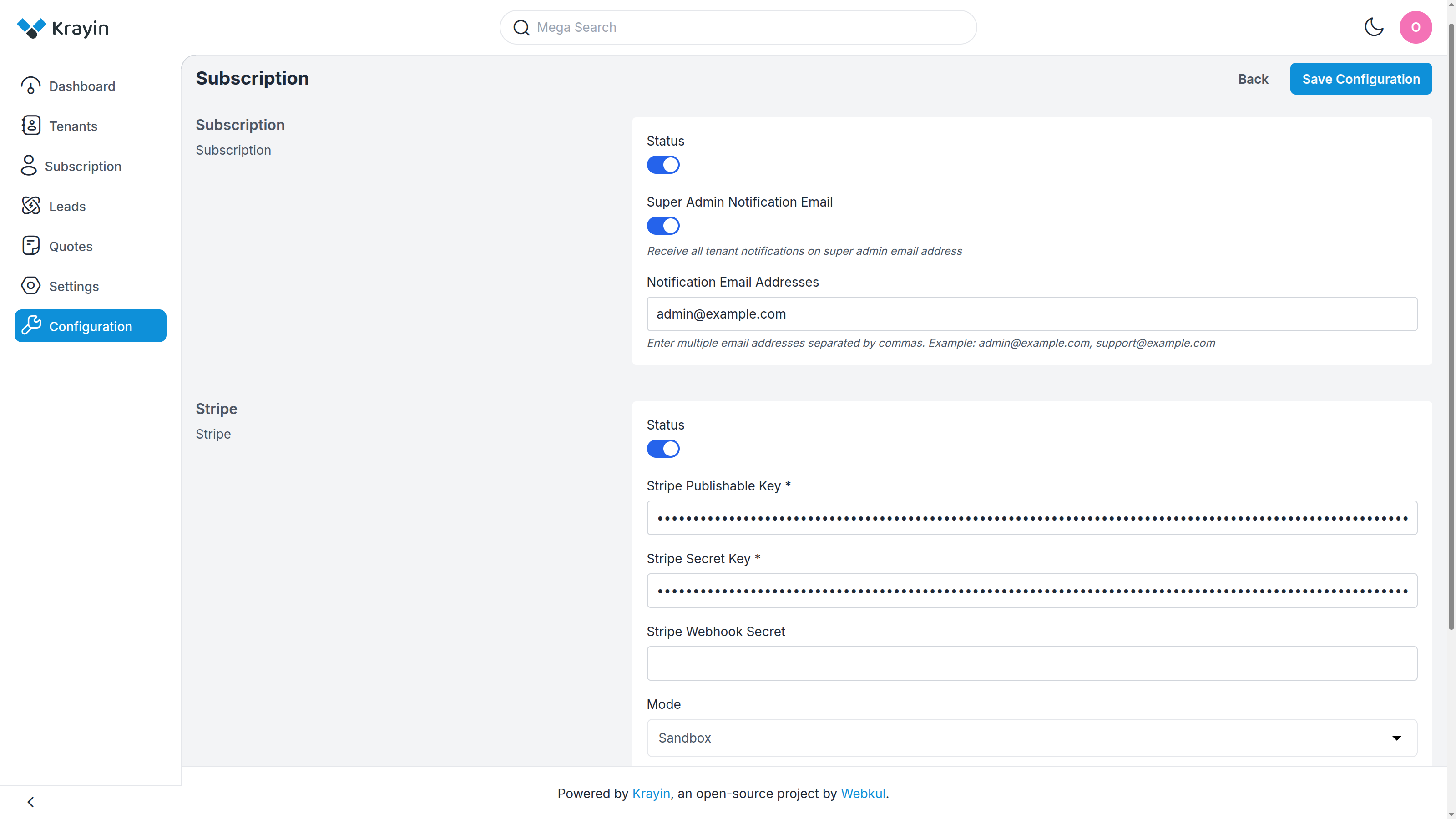
- Status — turn on to enable Stripe payments.
- Stripe Publishable Key (required) — from your Stripe dashboard.
- Stripe Secret Key (required) — from your Stripe dashboard. Kept hidden once saved.
- Stripe Webhook Secret — the signing secret for Stripe's webhook, so Krayin can confirm payments.
- Mode — Sandbox for testing with Stripe's test keys, or Live to take real payments. Match this to the type of keys you entered.
WARNING
Use Sandbox with test keys while you set things up, and switch to Live only when you enter your live keys. Running live mode with test keys — or the reverse — means no payment will go through.
TIP
When you create or edit a priced plan, Krayin registers it with Stripe using these keys. So connect Stripe before you publish paid plans.
Once Stripe is connected, a tenant who picks a paid plan is sent to Stripe's hosted checkout to enter their card — the platform never sees or stores card details. Stripe then calls back to confirm the payment (that's what the Webhook Secret verifies), the tenant's account is activated, and an invoice is raised. You can see that flow from the tenant's side on Registration → Paying for a paid plan.
Free Trial
Whether new tenants can start on a free trial, and for how long.
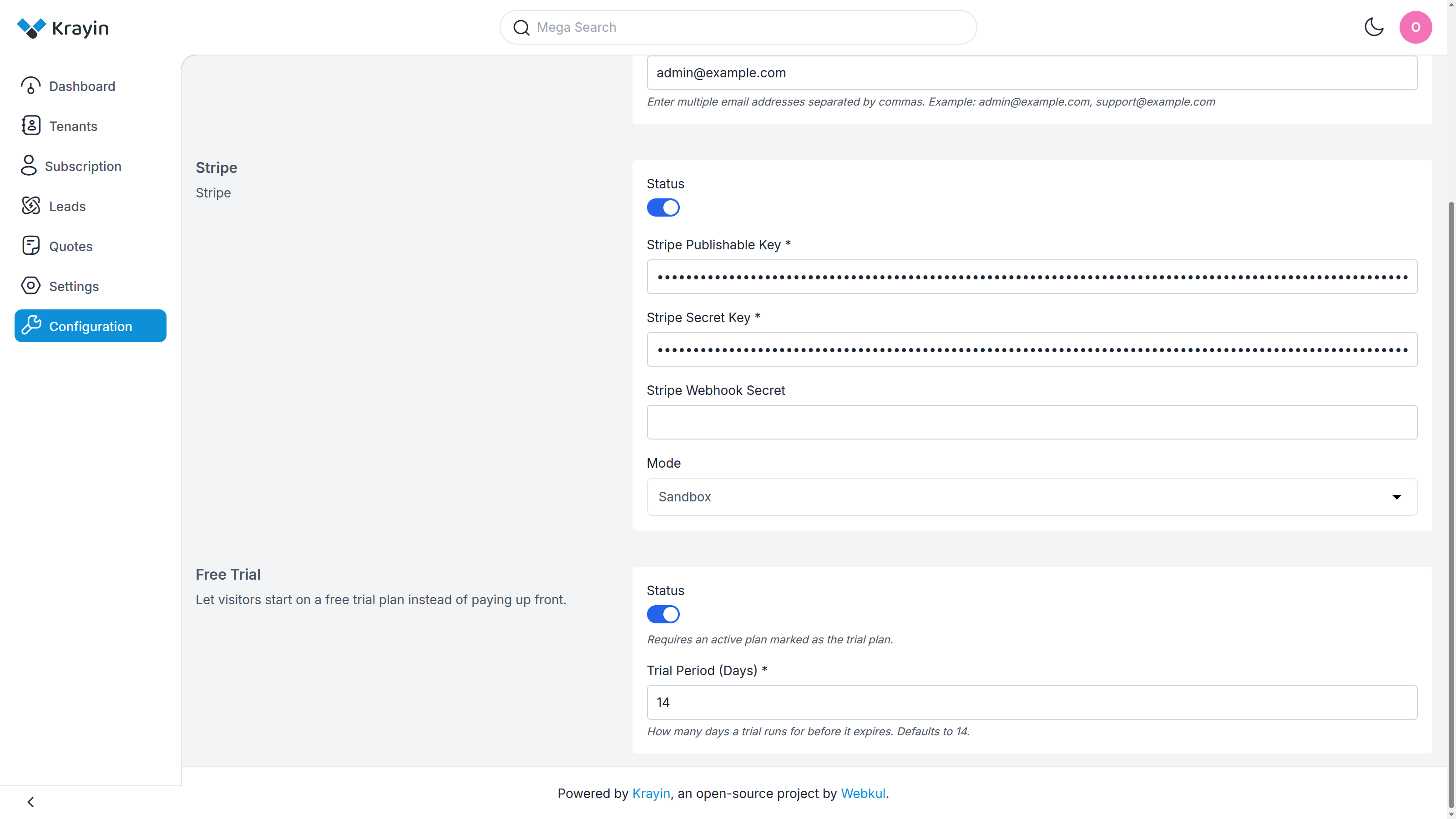
- Status — turn on to offer trials. Requires an active plan marked as the trial plan.
- Trial Period (Days) — how long a trial runs. Accepts 1–365, defaults to 14.
This block is explained in full on Free Trials.
Where to go next
- Set up the trial plan these settings govern → Free Trials
- Build the paid plans Stripe will charge for → Plan Management
- Add colleagues to help you run the platform → Agents & Roles