

Leads
Every lead, from every tenant, in one list. This is the platform-wide view — a way to see how much selling is happening across your tenants without logging into each CRM.
What you'll learn
- How to read the cross-tenant leads list
- What you can edit, and what you can't
- How to remove a lead
The leads list
Open Leads in the sidebar.
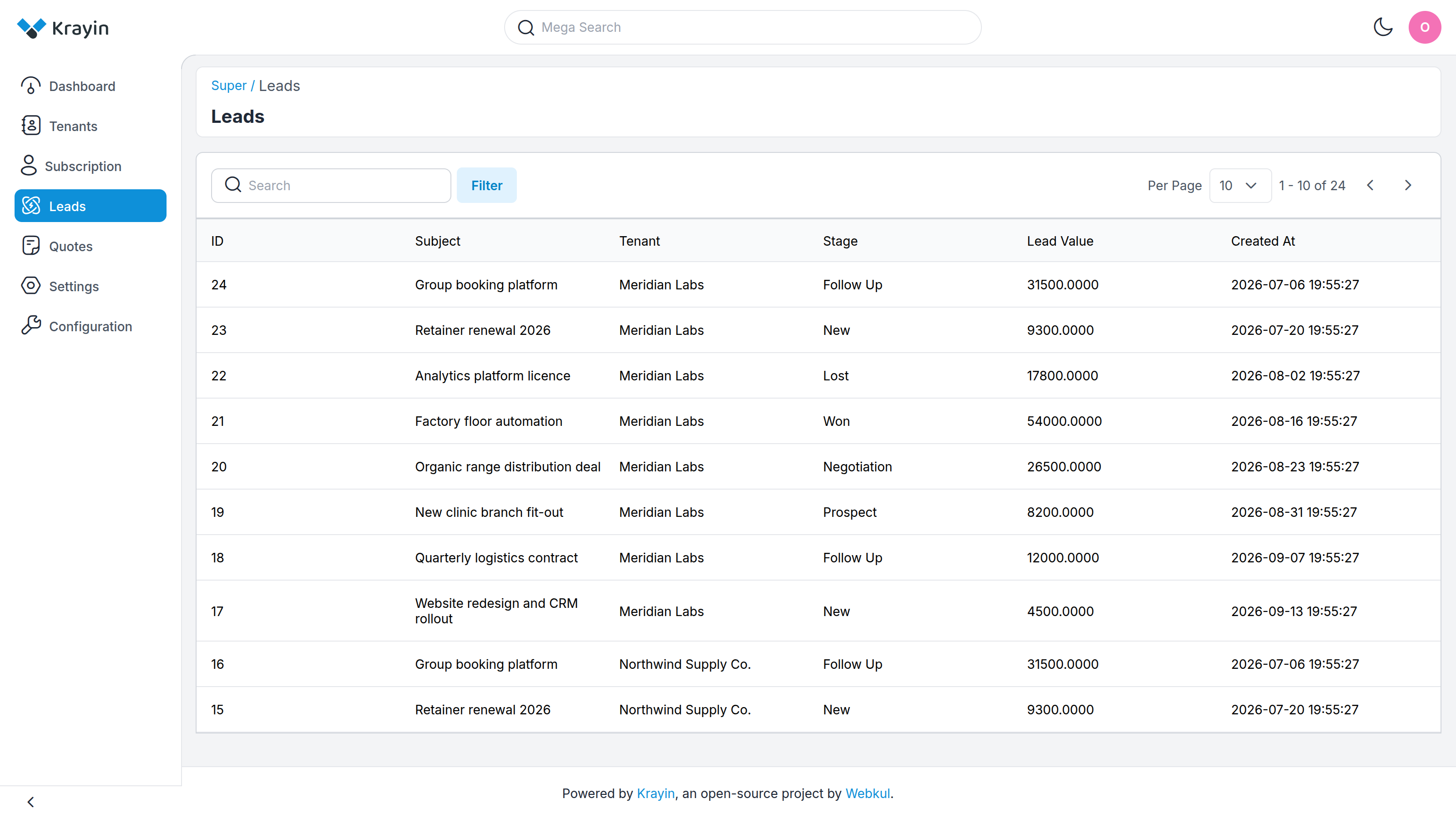
Each row shows:
- ID — the lead's number within its own tenant.
- Subject — the lead's title.
- Tenant — which tenant the lead belongs to. This is the column that makes the list platform-wide.
- Stage — where the lead sits in its pipeline (New, Follow Up, Won, Lost, …).
- Lead Value — its monetary value.
- Created At — when it was raised.
Use Search and Filter to narrow the list — for example, to everything from one tenant, or everything at the Won stage.
TIP
The Converted Leads and Conversion Rate figures on the dashboard are drawn from these same leads — a lead counts as converted once it reaches a Won stage.
Editing a lead
The pencil icon opens a lead. From here you can adjust a few high-level fields:
- Subject
- Lead Value
- Comment
Everything else — the tenant, the stage, the contact person, the assigned agent — is shown but marked Read-only details (managed by the tenant). That data belongs to the tenant and is changed inside their own CRM, not here.
WARNING
This is a light-touch, oversight view. Editing a lead here changes the tenant's real data. Reserve it for corrections; the day-to-day work happens in the tenant's own CRM.
Deleting a lead
The trash icon removes a lead. As with editing, this acts on the tenant's real data, so use it only to clear out something that genuinely shouldn't exist.
Where to go next
- The same platform-wide view for quotes → Quotes
- The tenants these leads belong to → Tenant Management