

Dashboard & Sign-in
The super admin panel is where the whole platform is run. This page covers getting in, and reading the dashboard that greets you.
What you'll learn
- How to sign in to the super admin panel
- What each figure on the dashboard is counting
- Where to go next from what you see
Signing in
Open your platform address and add /super/login — so if your platform runs at example.com, go to example.com/super/login.
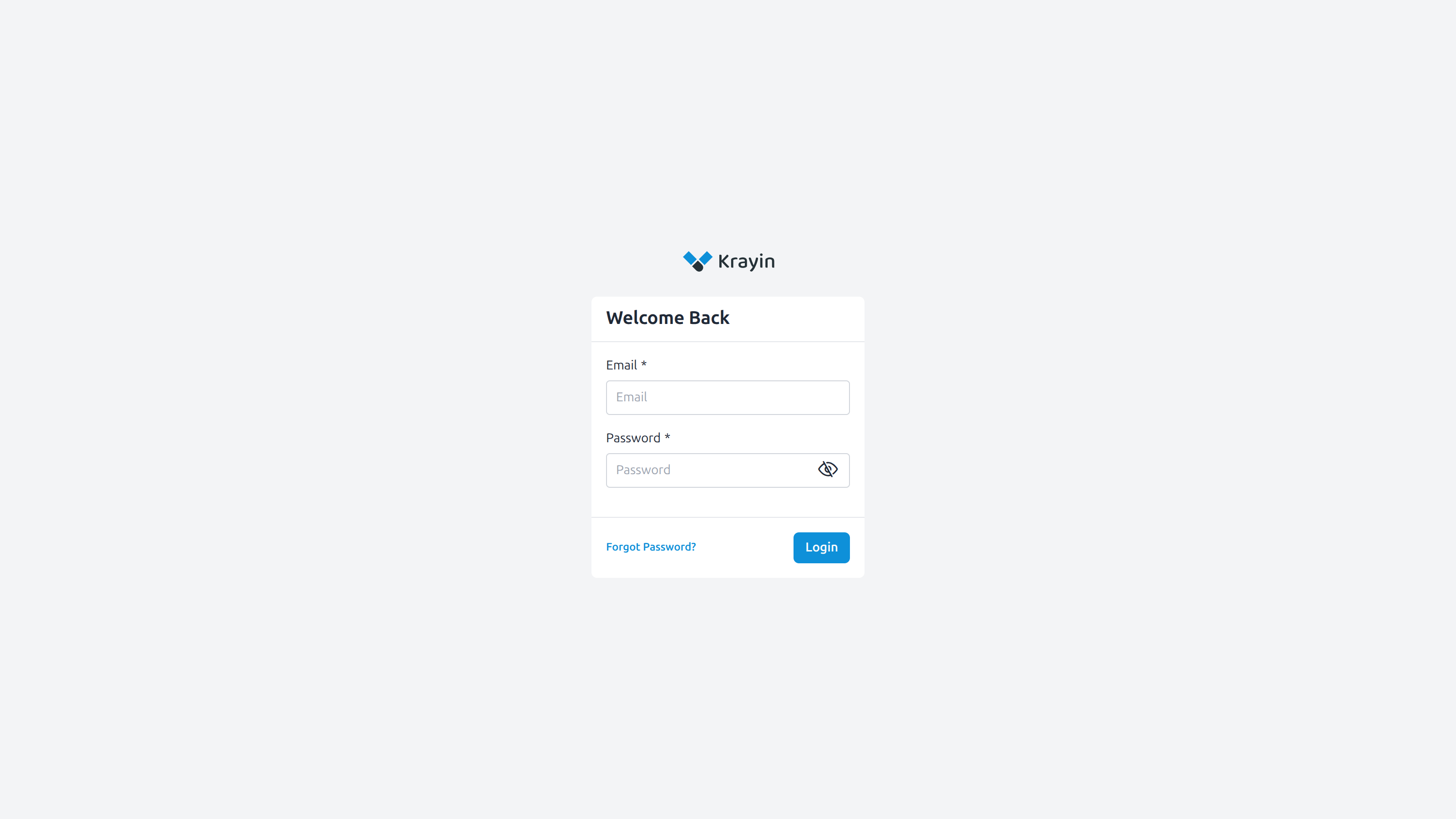
Enter the Email and Password of your super admin account and select Login.
- Forgotten it? Forgot Password? emails you a reset link.
- If you see "Your account is yet to be activated", the account exists but has been switched off. Another super admin can re-activate it from Agents & Roles.
WARNING
This is not the same sign-in as your tenants use. Tenants log in on their own subdomain at /admin/login — see The Tenant Workspace.
Reading the dashboard
Signing in lands you on the Dashboard, a read-only summary of the whole platform — every tenant counted together, not one at a time.
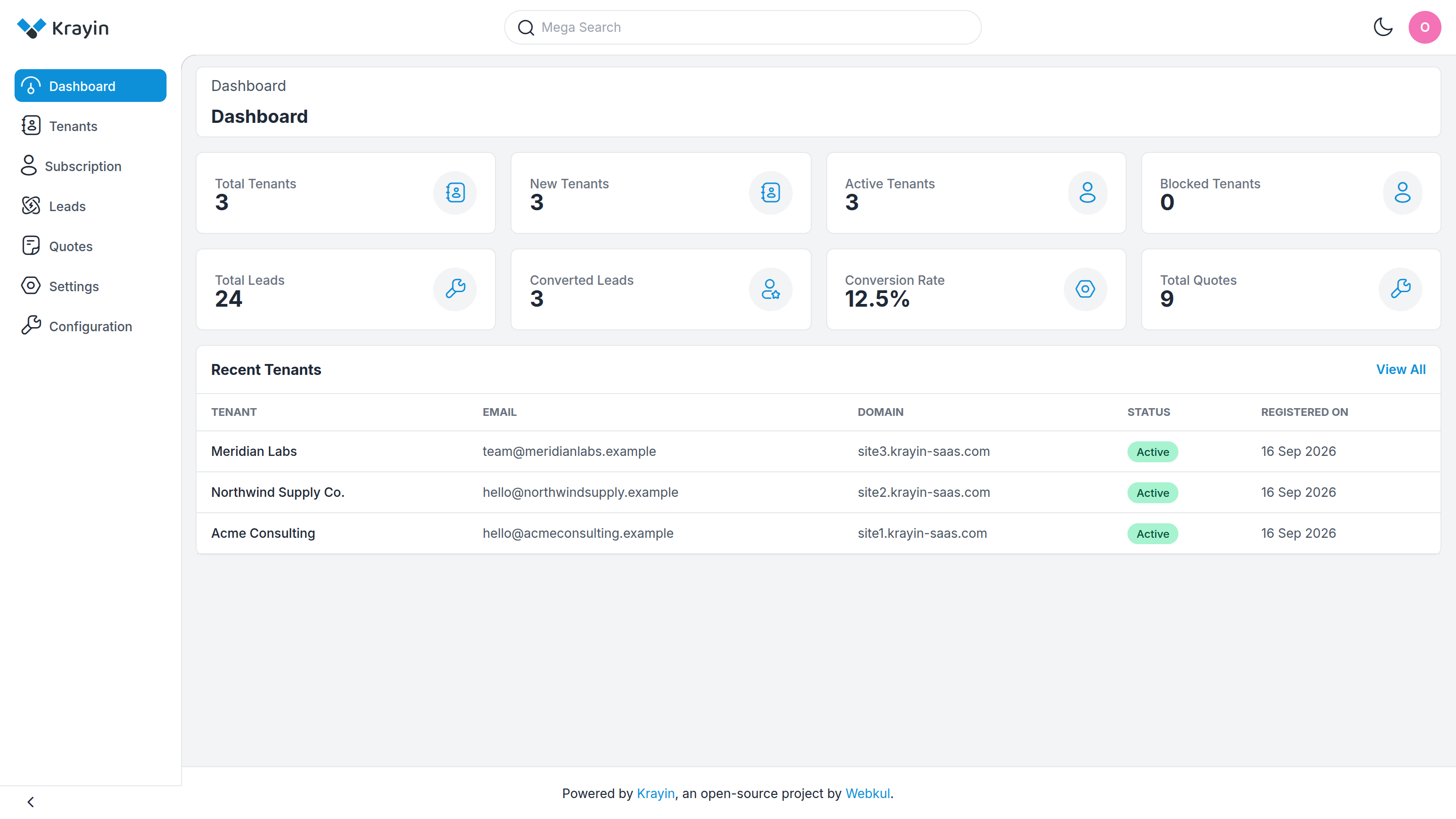
The figures across the top
- Total Tenants — every tenant ever registered, whether active or blocked.
- New Tenants — those registered in the last 30 days, so you can see growth at a glance.
- Active Tenants — tenants who can currently log in and use their CRM.
- Blocked Tenants — tenants you have switched off. They stay in the list, and their data is untouched, but nobody can sign in. See Tenant Management.
- Total Leads — every lead across every tenant.
- Converted Leads — leads that have reached a Won stage in their pipeline.
- Conversion Rate — converted leads as a percentage of total leads.
- Total Quotes — every quote raised across the platform.
TIP
Active and Blocked should always add up to Total Tenants. If they don't, a tenant was created outside the normal registration flow — worth checking.
Recent Tenants
Underneath the figures is the Recent Tenants table: the five newest tenants, with their
- Tenant — the business name they registered with
- Email — the address their account was opened with
- Domain — the subdomain their CRM runs on
- Status — Active or Blocked
- Registered On — the date they joined
View All opens the full list in Tenant Management.
If nobody has signed up yet, this reads No tenants yet. — expected on a fresh platform.
Where to go next
The dashboard only reports; it doesn't change anything. To act on what you see:
- A tenant needs adding, editing or blocking → Tenant Management
- Leads look low, or you want to see them per tenant → Leads
- Nobody is subscribing → check your subscription plans are published